
AFrame allows you to customize many areas of your account. The admin area is where most of the customization settings reside for managing team members, templates, billing, and more. Below is a glimpse of where you can set up your account's information and default settings.
TABLE OF CONTENTS
Team Settings
Here you can enter and update your team details, branding, and other key information used across your transactions and documents. Each field also includes its own merge field code, allowing you to automatically pull that information into email and letter templates when needed.
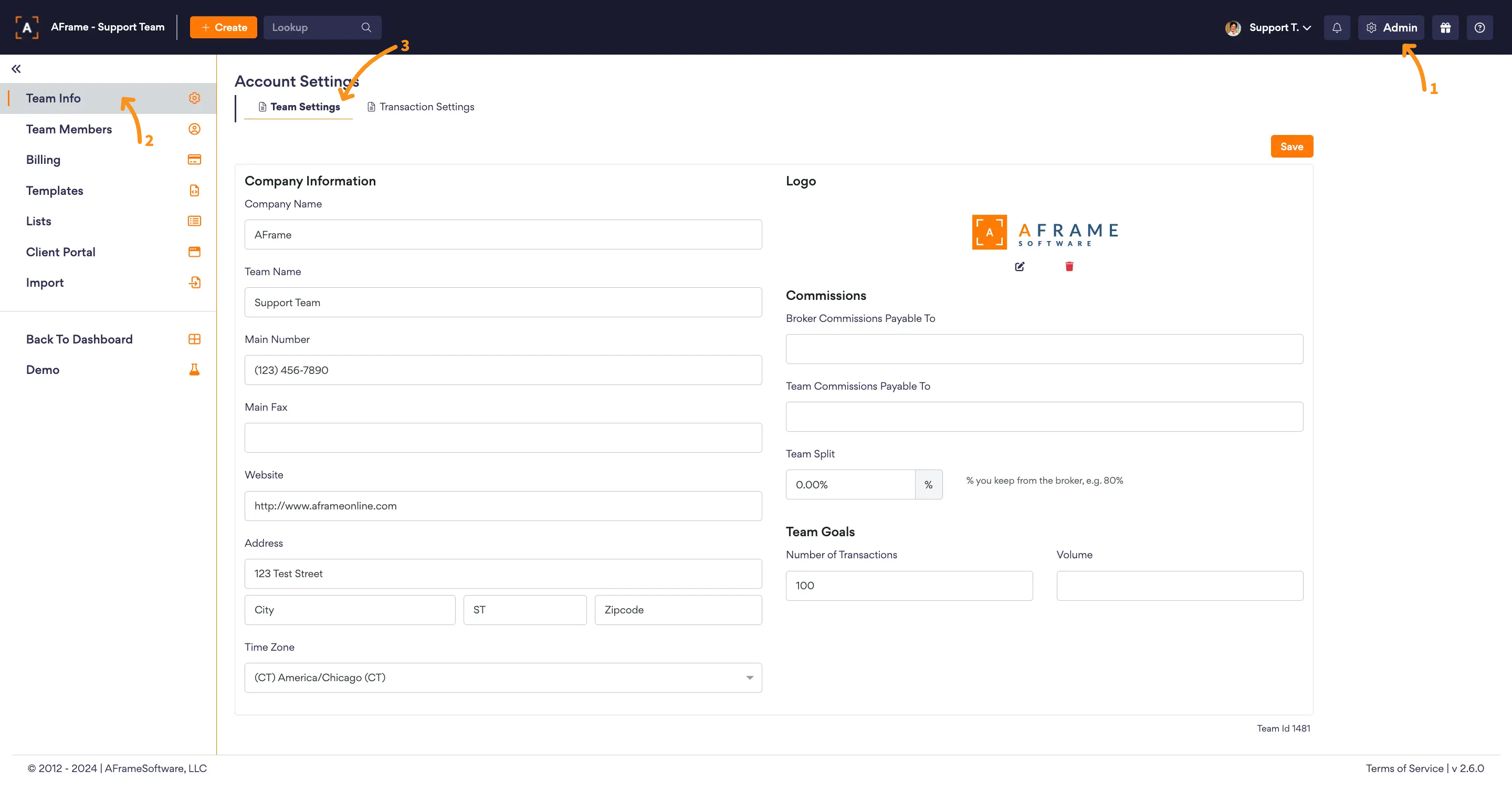
Open in AFrame: Admin > Team Info > Team Settings
Related Articles: Merge Field Codes, Email/Letter Templates
Transaction Settings
Where you set default options and preferences that apply to your transactions. These settings help streamline your workflow by automatically applying your preferred configurations when creating and managing transactions in AFrame.
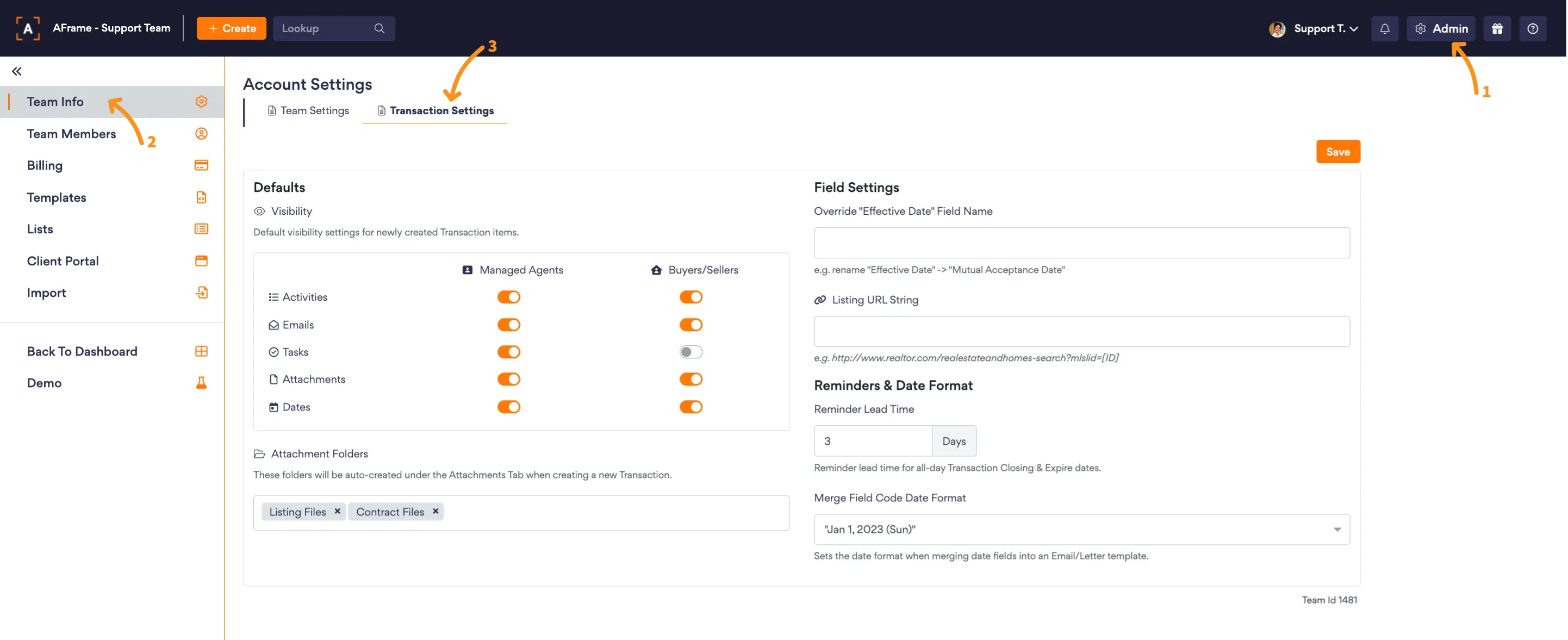
Open in AFrame: Admin > Team Info > Transaction Settings
Defaults
- Portal Visibility: You can control the agent & buyer/seller portals' default settings. You can set the default for activities, emails, tasks, attachments, and dates.
- Transaction Attachment Folders: These folders will be auto-created under the Attachments Tab when creating a new transaction.
Field Settings
- Override "Effective Date" Field Name: You can set the name to another default term, such as Mutual Acceptance Date.
Note: The merge field code will remain $EffectiveDate
Reminders & Date Format
- Reminder Lead Time: You can set when you want to be reminded of important Contract dates, such as Birthdays and Anniversaries.
- Merge Field Code Date Format: Sets the date format when merging date fields into an Email/Letter template.