
Each profile in your account can have multiple email signatures to choose from. This is great for those who want custom signatures for each Managed Agent, or if you have integrated more than one email in your account, each needing different signatures.
TABLE OF CONTENTS
Signature Creation Steps
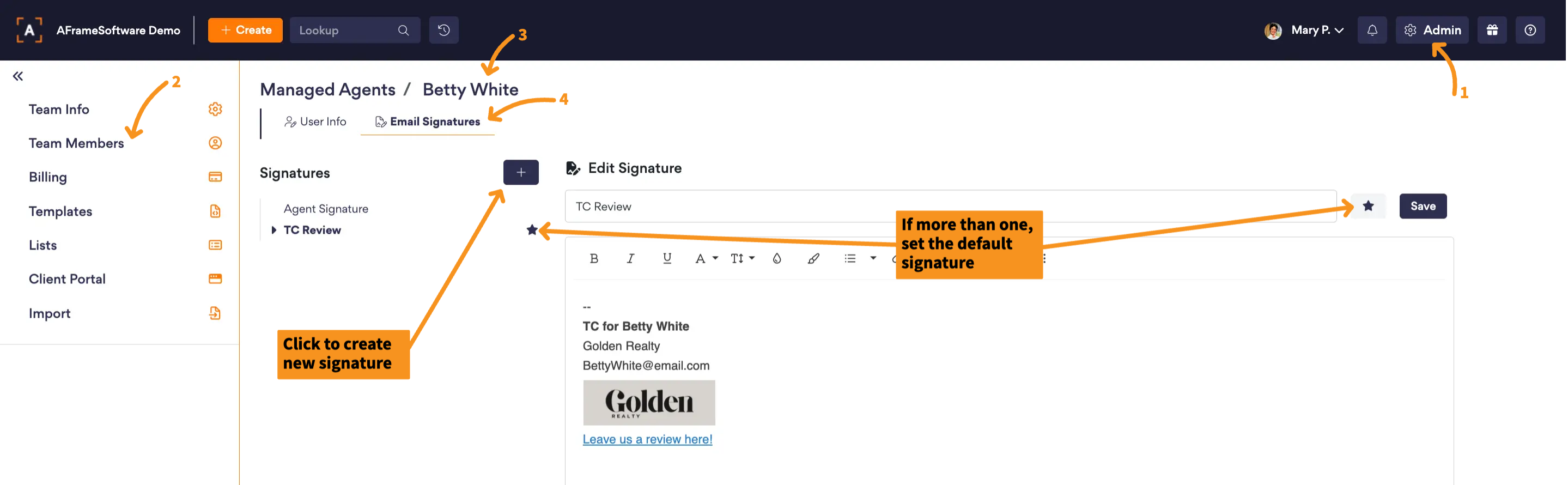
- Go to Admin > Team Members (https://www.aframeonline.com/afs/app/r/admin-team-members)
- Select the user you need to create an email signature for
- Create signature(s)
- If multiple signatures, set the default signature with the star icon
Default Signature Settings
Transaction Email Default Signature
On the My Profile settings page, each standard user can choose which default signature is used for transaction emails. The available options are My Signature or the Primary Agent’s Signature.
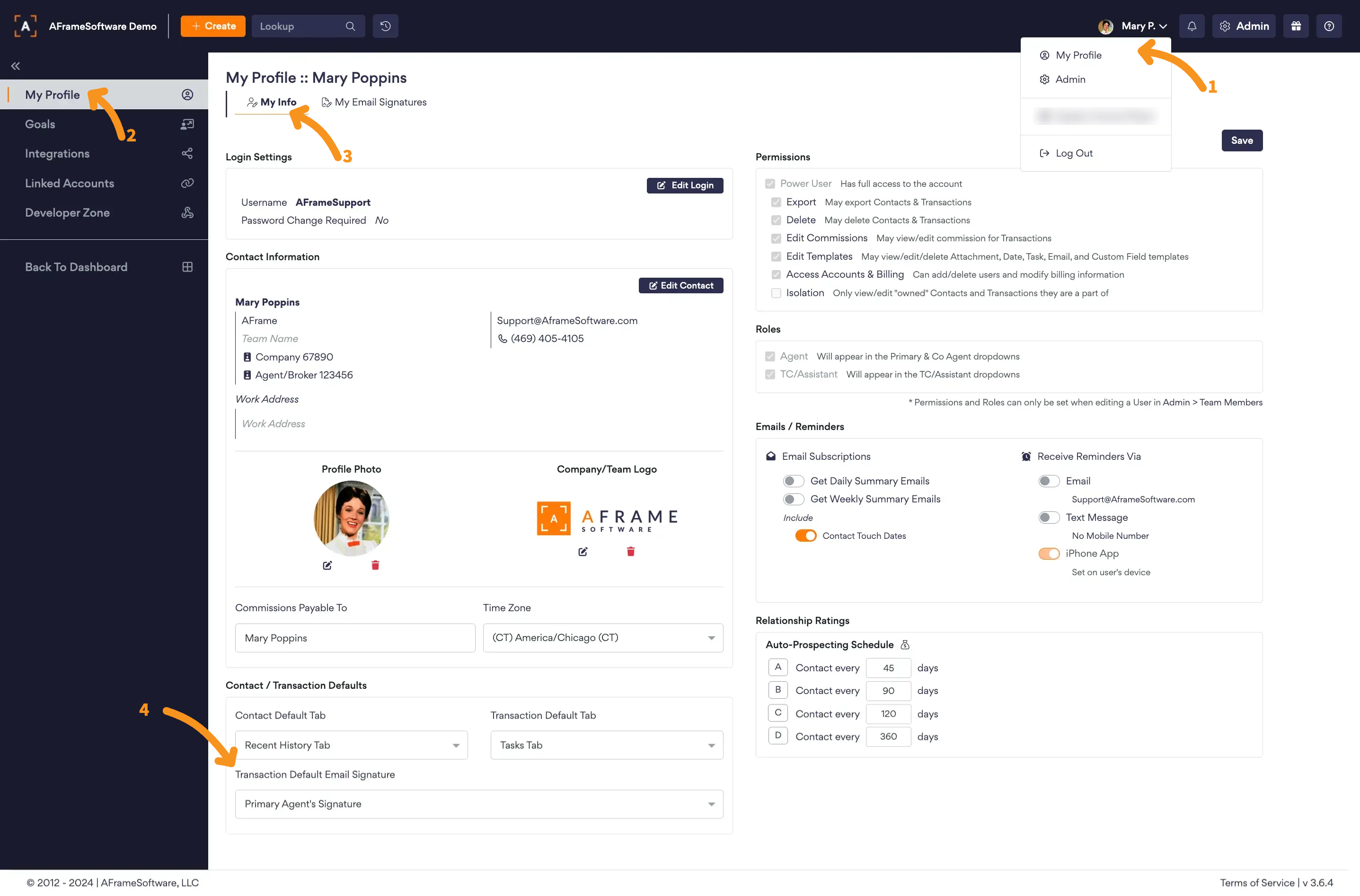
My Signature (default selection) - Uses the default signature created under the email signature tab of your profile.
Primary Agent Signature (Independent TC-friendly option) – Uses the default signature created in each primary agent’s profile. It allows you to customize signatures per agent while continuing to send emails from your personal email. This helps avoid the added cost of integrating separate custom email addresses for each agent ($9 monthly per additional integration) and keeps all replies in one place.
Email Integration Default Signature
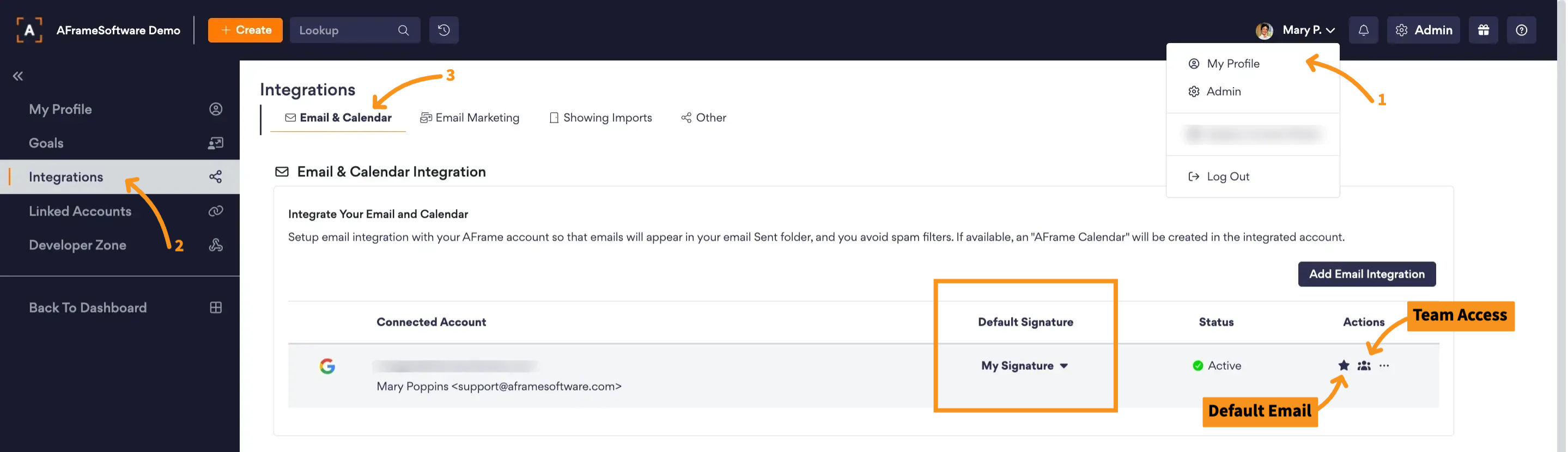
Each standard user can predefine a default signature per integrated email in their My Profile settings under the integration page. This is very helpful if there is more than one email integrated, as it will automatically use the selected signature depending on which email is chosen to send from. Your options include any signature saved across the account, from any standard user or managed agent profile signatures.
Need help? We're here for you! Email us at Support@AFrameSoftware.com or use the ? icon in the top right of your AFrame account to submit a help request form.